Import Google Calendar and Outlook Events in Taskito
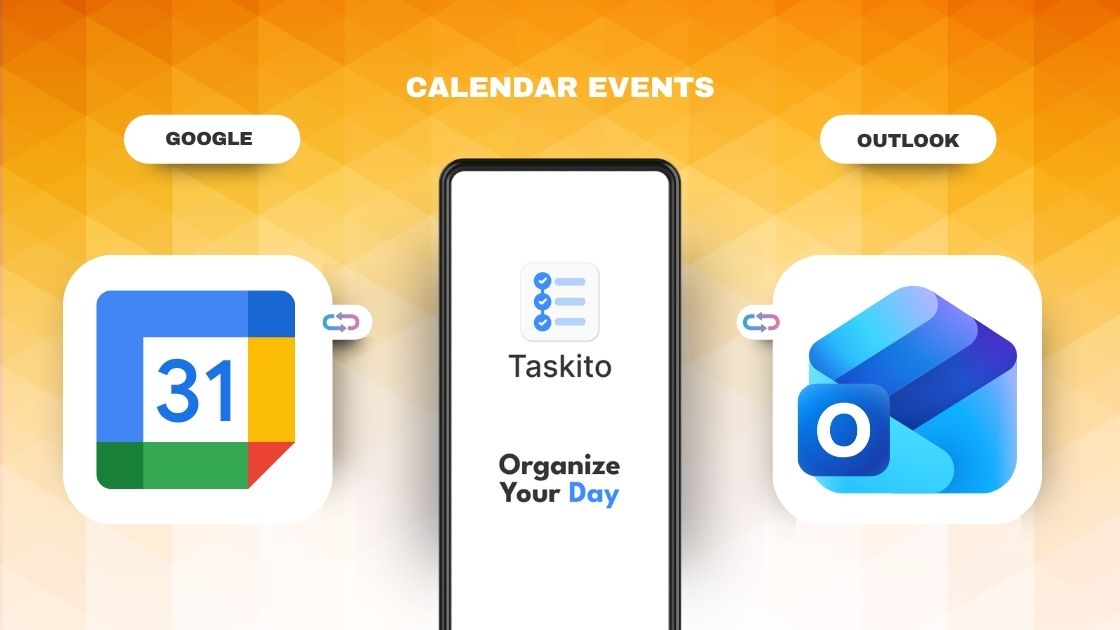
See Google Calendar and Microsoft Outlook events in Taskito on Android by syncing them with your phone's system calendar.
Taskito can show your calendar events next to tasks, reminders, notes, and checklists in the Timeline. This helps you plan your day around meetings, appointments, birthdays, holidays, and personal commitments without copying every event into your to-do list.
If Google Calendar or Microsoft Outlook events are not showing in Taskito, the most common reason is that those events are not available in your Android system calendar yet. Taskito reads calendars from your phone, so Google Calendar and Outlook first need to sync their events with Android.
Sync Google Calendar and Outlook events to your Android phone, then show them in Taskito
Quick links
- Before you start: how Taskito reads calendars
- How to import Google Calendar events
- How to import Outlook Calendar events
- Select calendars in Taskito
- Troubleshooting missing calendar events
- Frequently asked questions
Before you start: how Taskito reads calendars
code🗓️ Calendar import is a premium feature in Taskito. You need an active subscription to see calendar events in your daily timeline.
Taskito does not connect directly to Google Calendar or Microsoft Outlook servers. On Android, Taskito imports events from calendars that are already available on your phone through the Android system calendar.
Here is how calendar import works:
- Taskito asks for permission to read calendar events on your Android device.
- Android shows Taskito the calendar accounts available on your phone.
- You choose which calendars should appear in Taskito, such as work, personal, holidays, or birthdays.
- Taskito imports upcoming events and shows them in the Timeline.
- Calendar events stay calendar events. Taskito does not edit Google Calendar or Outlook events.
This means your calendar app remains the source of truth, while Taskito becomes the daily planning layer where tasks and events come together.
How to import Google Calendar events
Google Calendar usually syncs with Android automatically. If you added your Google account when setting up your phone, your calendar events are often already available to apps like Taskito.
If Google Calendar events are not showing in Taskito, check that Calendar sync is enabled for your Google account.
- Open the Settings app on your Android phone.
- Go to Accounts, Passwords & accounts, or Users & accounts. The exact name may differ by phone.
- Select your Google account.
- Tap Account sync.
- Make sure Calendar is turned on.
- If available, tap the menu and choose Sync now.
After this, open Google Calendar and confirm that the events appear on your phone. Then return to Taskito and select the calendar you want to show in your Timeline.
If a specific Google Calendar is missing
Sometimes your main Google Calendar syncs correctly, but a shared calendar, holiday calendar, birthday calendar, or secondary calendar is hidden.
- Open the Google Calendar app.
- Open the menu from the top left.
- Check that the calendar you want is visible and selected.
- Open that calendar's settings and make sure Sync is turned on if the option is available.
- Refresh Google Calendar, then check Taskito again.
How to import Outlook Calendar events
Outlook Calendar works differently from Google Calendar on many Android phones. Your meetings may be visible inside the Outlook app, but not available to the Android system calendar. If Android cannot see those events, Taskito cannot import them.
To make Outlook events available to Taskito, enable calendar sync inside the Outlook app.
- Open the Outlook app on your Android phone.
- Tap your profile icon or menu.
- Open Settings.
- Select the Outlook or Microsoft account whose calendar you want to use.
- Find the Calendar section.
- Turn on Sync calendars.
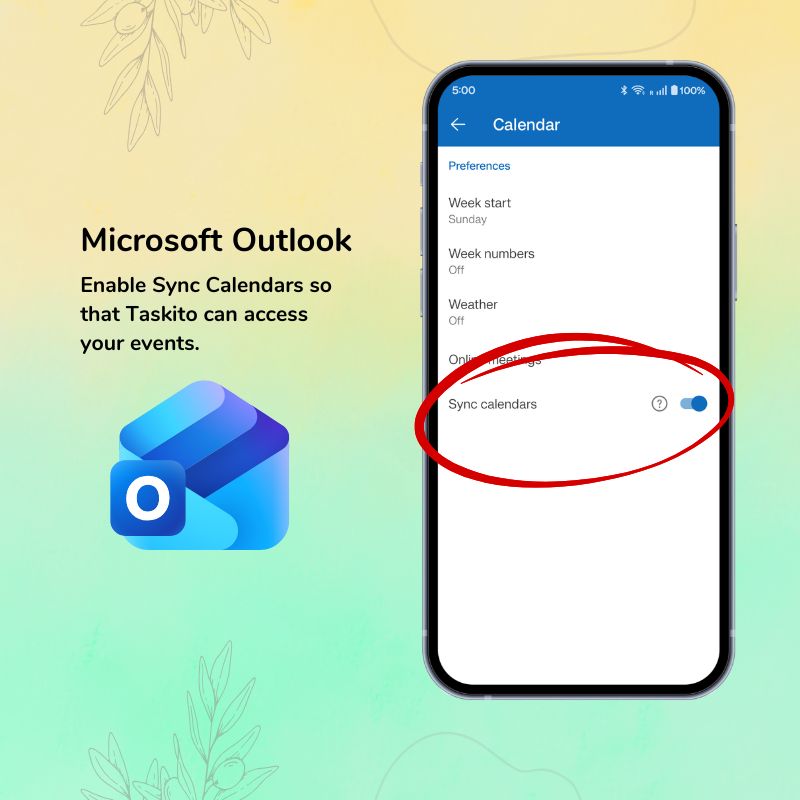
In Outlook for Android, open Calendar settings and turn on Sync calendars
Microsoft describes this setting as exporting Outlook calendars and events to the default calendar apps on Android. Once enabled, Outlook events can appear in the phone's calendar system, and Taskito can read them after calendar permission is granted.
If the Outlook Sync calendars option is missing
If you do not see Sync calendars, or the option is disabled, check these common causes:
- Open Android Settings > Apps > Outlook > Permissions and allow Calendar permission.
- Update the Outlook app from the Play Store.
- Open Outlook settings for the account and try Reset Account if sync is stuck.
- Check whether the account is set up as IMAP or POP. These account types may not support calendar sync.
- If this is a work or school account, your organization may restrict calendar export to the Android system calendar.
After enabling Sync calendars, wait a few minutes for Android to receive the events. Then open Taskito and choose the Outlook calendar from the calendar selection screen.
Select calendars in Taskito
Once Google Calendar or Outlook Calendar events are available on your Android phone, choose which calendars Taskito should import.
- Open Taskito.
- Go to the calendar integration or calendar import screen.
- Grant calendar permission if Taskito asks for it.
- Select the calendars you want to show in the Timeline.
- Choose only the calendars that help you plan your day, such as work meetings, personal events, holidays, or birthdays.
- Wait for Taskito to import upcoming events.
Your selected calendar events will appear alongside your tasks and reminders in the Timeline. This makes it easier to see how much time you actually have before adding more tasks to a busy day.
Taskito imports calendar events for planning. It does not replace Google Calendar or Outlook, and calendar events cannot be edited from Taskito.
You can also show calendar events in Taskito's home screen widget. Learn more in the To-Do List Widgets guide.
Troubleshooting missing calendar events
Google Calendar events are not showing in Taskito
- Make sure the correct Google account is added to your Android phone.
- Turn on Calendar sync in Android account settings.
- Open Google Calendar and confirm that the events appear there.
- Check whether the missing calendar is hidden in the Google Calendar app.
- Refresh Google Calendar or use Sync now from Android account settings.
- Reopen Taskito and check the calendar selection screen.
Outlook Calendar events are not showing in Taskito
- Turn on Sync calendars in the Outlook app settings.
- Allow Calendar permission for Outlook in Android settings.
- Make sure the Outlook events appear in your phone's default calendar app.
- Update Outlook from the Play Store.
- Check whether the account supports calendar sync. IMAP and POP accounts may not export calendar events.
- For work or school accounts, ask your administrator whether calendar export to Android is allowed.
Taskito does not show any calendar accounts
- Make sure Taskito has Android calendar permission.
- Confirm that at least one calendar is synced to the phone system.
- Open your default Calendar app and check whether Google or Outlook events appear there.
- Restart the phone if Android calendar sync appears stuck.
- Open Taskito again and refresh the calendar import screen.
Frequently asked questions
Does Taskito connect directly to Google Calendar?
No. Taskito reads calendar events that are available on your Android phone. Google Calendar usually syncs with Android automatically, so Taskito can import those events after you grant calendar permission.
Why are Outlook events not showing in Taskito?
Outlook events may only be visible inside the Outlook app. To make them available to Taskito, open Outlook settings for your account and turn on Sync calendars. This syncs Outlook events to the Android system calendar.
Can Taskito edit Google Calendar or Outlook events?
No. Taskito imports calendar events so you can plan your tasks around them. Google Calendar and Outlook remain the source of truth for editing calendar events.
Are calendar events synced in real time?
Calendar import may not be instant. Google Calendar, Outlook, Android, and Taskito can each take a little time to refresh events. If an event was just created, wait a few minutes and try refreshing your calendar.
Can I choose which calendars appear in Taskito?
Yes. After granting calendar permission, Taskito lets you choose which available calendars should appear in your Timeline. You can select work, personal, holidays, birthdays, or any other synced calendar that helps you plan your day.
Want a broader overview of the feature? Read Integrate your calendar with Taskito to learn how calendar events fit into Taskito's Timeline.
Do you find Taskito helpful?
Support us by leaving a 5-star review on our app stores

Follow us on social media to get updates & tips about planning and productivity.