Time blocking in Taskito: Agenda View on your timeline
Your to-do list lies to you.
It shows what you want done. It stays silent about when that work actually fits. So you end the day with a neat list of unchecked boxes and a vague sense that you “ran out of time”—when the real issue was never the tasks. It was the clock.
You don’t have a task problem. You have a time problem.
Time blocking on the timeline
Everything in Taskito already revolves around the Timeline—the spine that sets us apart from a flat checklist. Agenda View (time-block layout) is not a separate product story: it is the same timeline, in a clock-time layout, so tasks sit on real hours instead of an endless stack.
One line: a view where your tasks finally sit on the day’s clock—still on your timeline, still synced across web and mobile, just easier to plan with.
If you want time blocking without turning into a calendar clerk, this is the middle ground: tasks on the agenda turn “later” into “2:30 to 3:15,” not a hope.
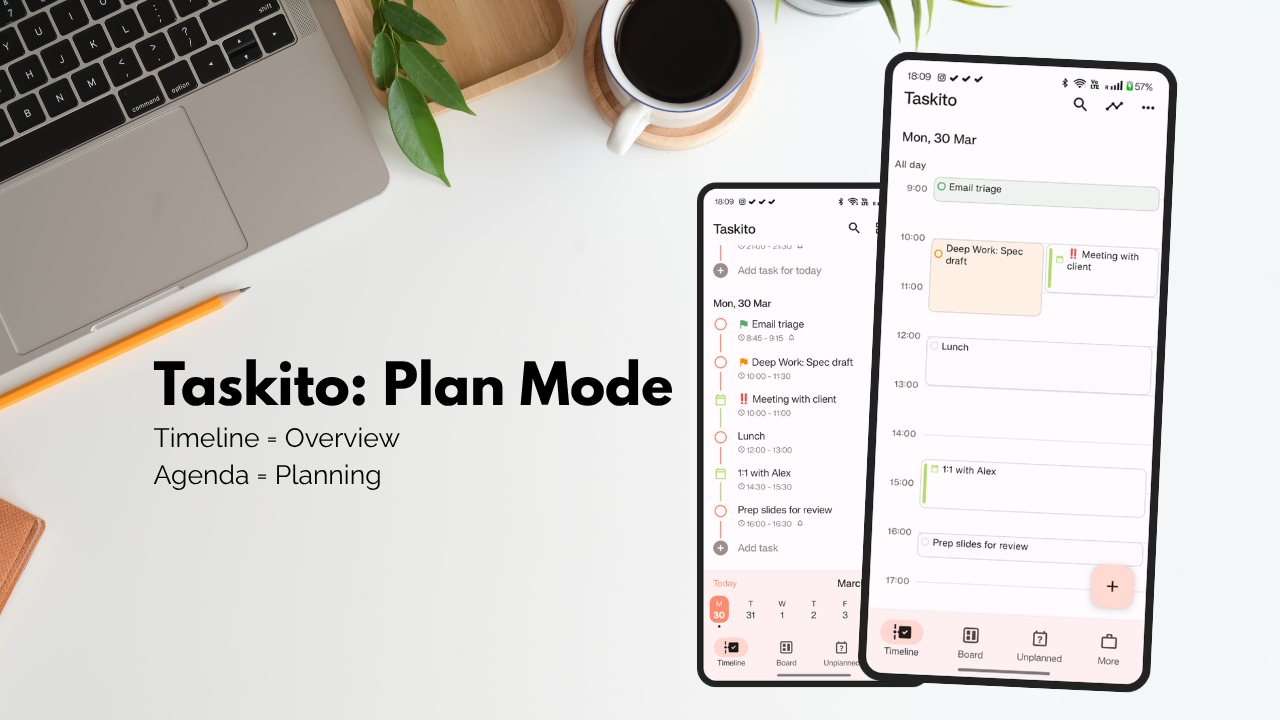
Your timeline: tasks anchored to the day, not lost in a list
Calendar on the timeline = the full day
Meetings and tasks only feel real when they share the same canvas. If you import Calendar to Taskito, the events land on the Timeline next to your work—so you see hard commitments and hour-by-hour task blocks together. That is the honest picture of the day: fixed events plus the work you still need to place.
How to open it
On Android, open your Timeline and switch to Agenda View (time-block layout) when you want clock-time planning—the gestures below apply there. In the timeline view, in the top right corner, you will find an option to switch to Agenda view. Use the same button to switch to Timeline view.
Coming soon iOS and Web.Why this matters
Whether you are a solo knowledge worker, juggling family schedules, or running a packed student week, the pain is the same: intentions without hours. Agenda View is for anyone who plans in tasks but lives in time.
- Tasks become scheduled commitments. When something has a start and an end on the timeline, your brain treats it like a meeting with yourself—not a guilt trip at the bottom of a list.
- You see conflicts instantly. Two things claiming the same hour is obvious when both sit on the line. No mental juggling.
- Your day becomes realistic. Visible slots force honesty: there are only so many blocks in a day. You plan what fits, not what you wish you were.
That shift—from “I should do this” to “this is when I do this”—is what makes planning your day in the app actually stick.
How it works (fast, visual, in your hands)
You are not filling out a spreadsheet. You are shaping the Timeline.
Drag tasks to reshape your day. Grab a block and move it. The timeline updates immediately. Rescheduling is a gesture, not a form—speed when the plan changes, control when you want to steer.
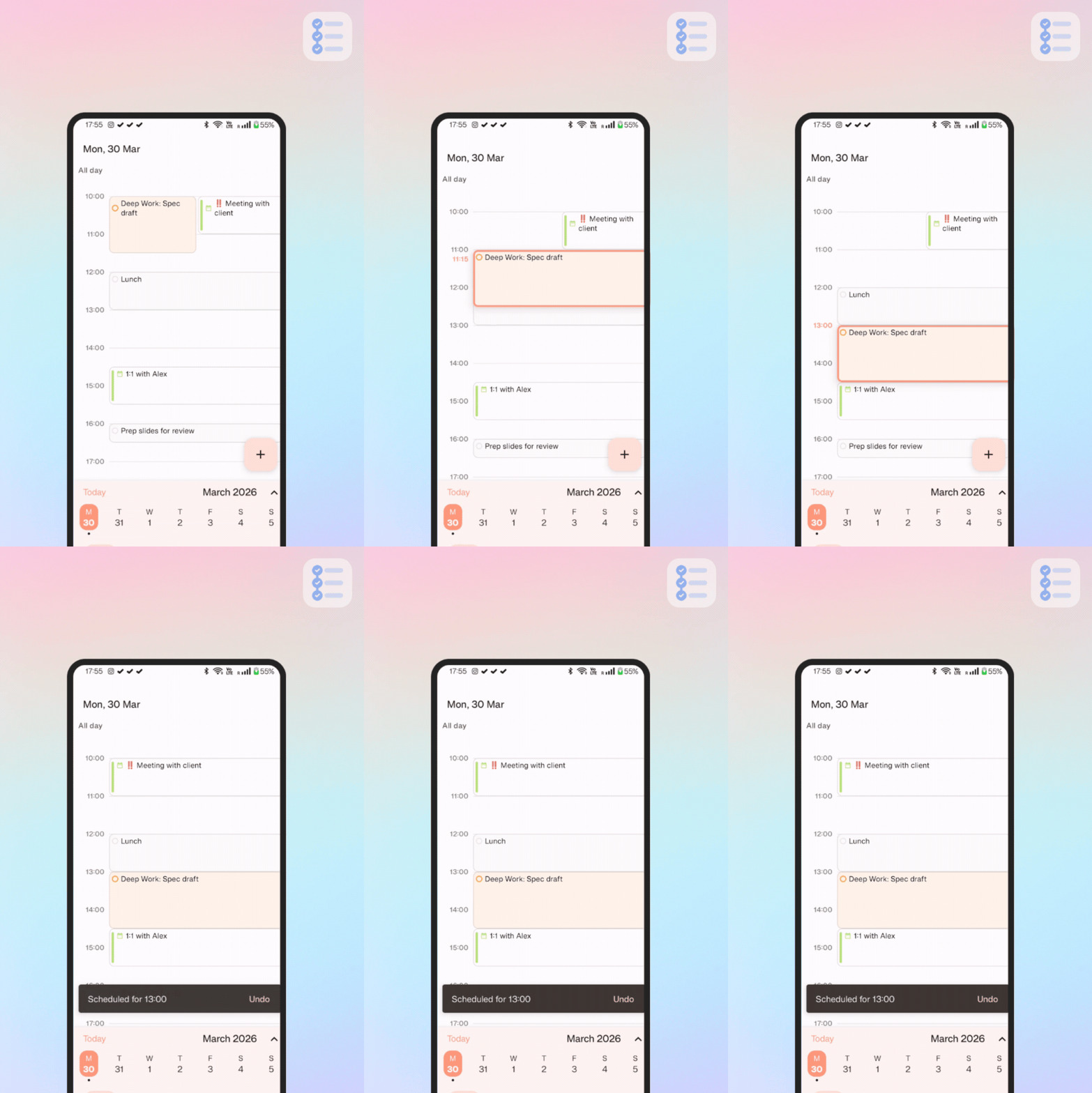
Urgent meetings can always derail your day. Plan around the meetings
Press and adjust time in seconds. Long-press a task to tweak when it starts and when it ends. Small nudges, big clarity: you decide how long work really takes, not how long you wish it took.
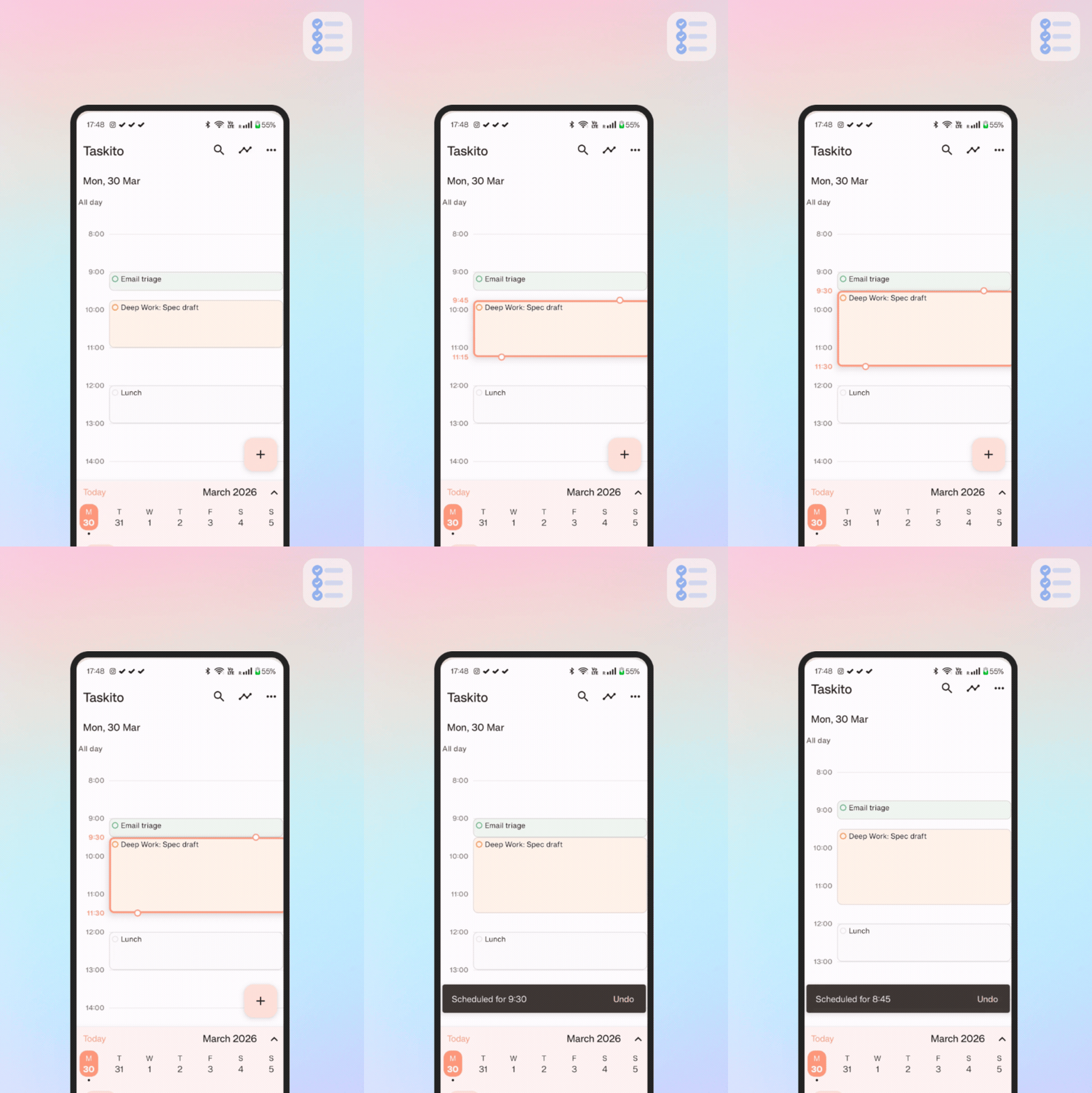
Time blocking on the timeline: slots you can see and adjust
Overlapping tasks sit side by side so conflicts are obvious. When two commitments collide, they do not hide behind each other—they appear side-by-side, like a calendar. You see the squeeze, you fix the plan, you move on. That is flexibility without guesswork.
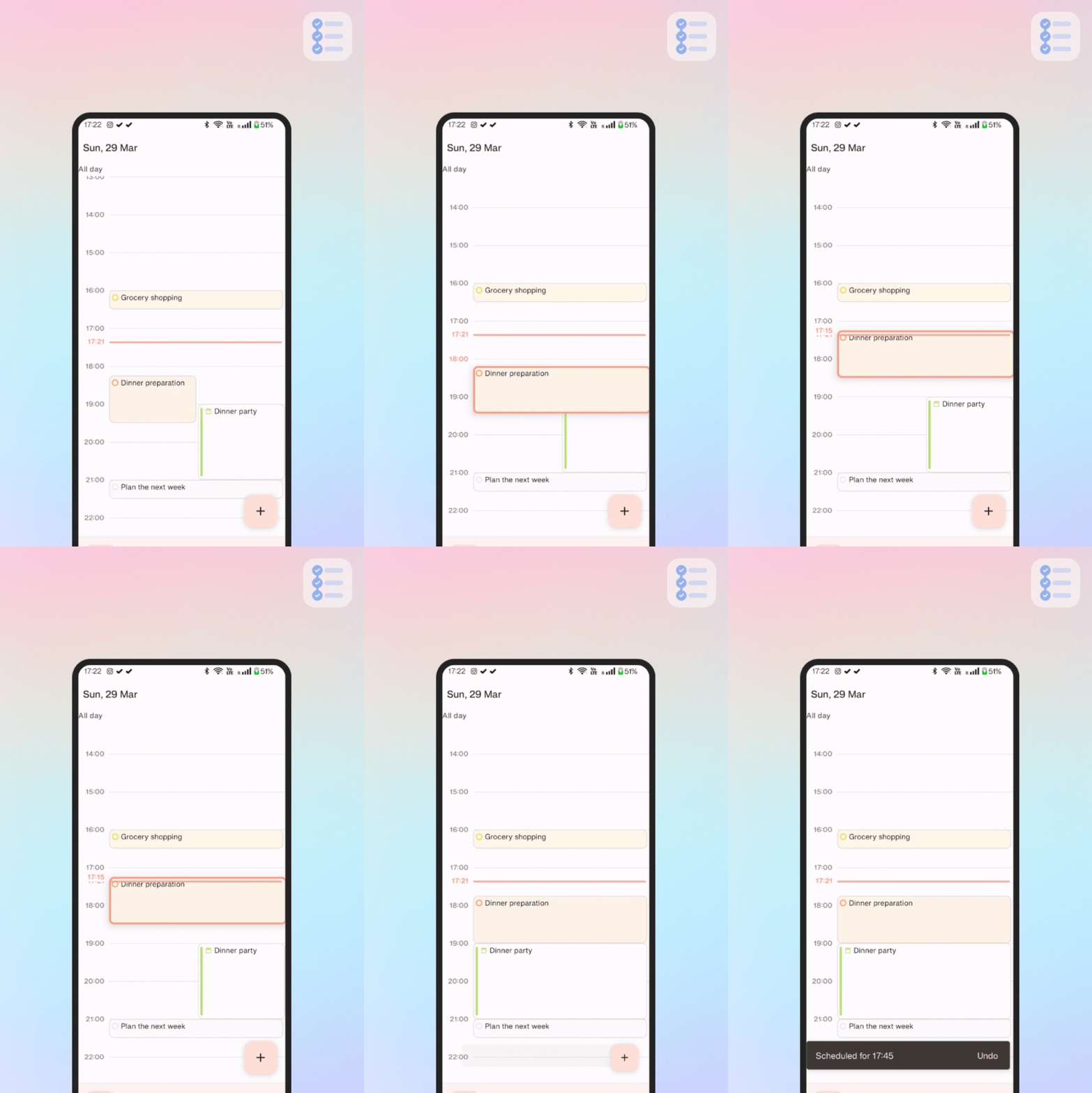
Meetings and tasks on one timeline—overlap stays visible
Capture stays fast; the timeline keeps the day honest on the clock. For reminders and nudges once blocks are set, the task and reminder notifications guide covers how Taskito keeps you on track.
Real-life scenarios
- Planning a focused workday. Block deep work first, wrap shallow tasks around the edges. You see the shape of the day on the Timeline before you live it.
- Rearranging when plans change. A meeting runs long, a kid gets sick, a client pings you—drag blocks, shorten a slot, slide the rest. The day redraws in seconds.
- Avoiding overbooking. Side-by-side overlaps and visible slots make it hard to pretend you can do five hours of work in two. You correct early, not at 6 p.m.
What makes this different
- Faster than traditional calendar apps for task-heavy days. You are moving tasks on the Timeline, not fighting event forms and invite fields.
- More flexible than rigid planners. The timeline bends; you are not locked into a template that made sense last Tuesday.
- Unlike a flat list, the timeline shows duration and overlap. Names in a checklist do not expose a double-booked hour; Agenda View does—same tasks, clearer physics.
Stop guessing your day. Start designing it.
A list says “do these things.” Agenda View on the Taskito timeline asks when, shows how much, and lets you fix the plan with drag, press, and move.
Coming soon iOS and Web.Do you find Taskito helpful?
Support us by leaving a 5 ⭐ review on our app stores

Follow us on social media to get updates & tips about planning and productivity.
Related Articles
Mastering Quick Add: The Fastest Way to Create Tasks in Taskito Web
Learn how to use Taskito Web's Quick Add feature with smart text parsing to create fully detailed tasks in seconds using natural language. Master keyboard shortcuts and boost your productivity with this comprehensive guide.
Introducing Taskito for Desktop!
Taskito for Desktop is here! Access your favorite task manager from your computer with instant sync, Quick Add, and all the features you love. Premium users get automatic access.
Launching Taskito on iOS
Organize your day-to-day tasks, projects, and notes on your iPhone and iPad! Taskito is now available on iOS 🎉