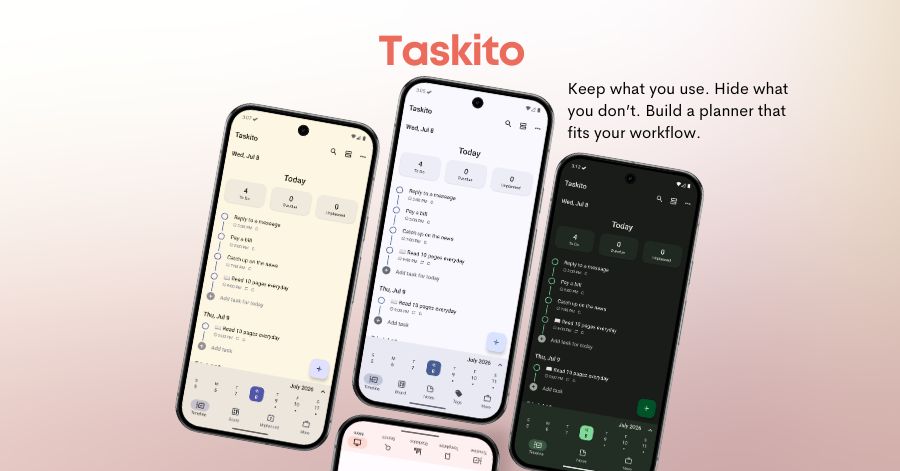
How to Customize the Bottom Navigation Bar in Taskito (Android)
Keep your most-used Taskito pages one tap away. Learn how to personalize the bottom navigation bar on Android — choose your tabs, set the order, and build a planner that fits the way you work.
Your planner should match how you plan.
Most apps give you a fixed navigation bar and expect you to work around it. That means the pages you open ten times a day might be buried two taps deep, while sections you rarely touch sit front and center. Every extra tap adds friction — and friction, compounded across a full week of planning, quietly slows you down.
Some people open Board every day to organize projects. Some live in Reminders. Some jump between Notes, Search, and Tags because that is where their workflow begins.
A fixed navigation bar works well until your routine grows around different parts of the app. That is why Taskito on Android now lets you customize the bottom navigation bar.
One line: choose the Taskito pages you want in the bottom bar, arrange them in the order that works for you, and keep your most-used tools one tap away.
Customize the bottom bar on Android
Taskito is built around the Timeline, but not everyone uses the rest of the app in the same order. Your day might start with tasks on the timeline, move into projects on the board, then end with reminders or statistics. Someone else might need quick access to notes, templates, or unplanned tasks.
With custom bottom navigation, you can make Taskito feel closer to your own planning style.
This customization is available for Premium members on Android.
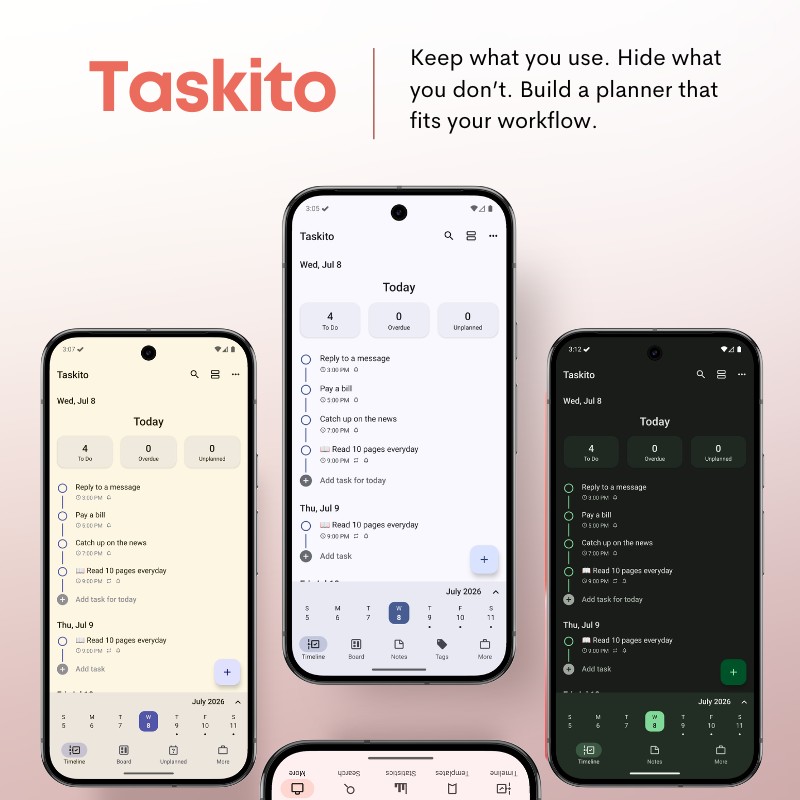
Choose the Taskito tabs you use most and keep them within easy reach
How it works
Open More → Personalize in the Android app. From there, you can choose which pages appear in the bottom navigation bar and arrange the selected tabs in the order you prefer.
There are a few simple rules:
- Timeline always stays first, because it is the center of your daily plan.
- More always stays last, so settings and additional sections remain easy to find.
- You can select up to 5 tabs in total, including Timeline and More.
- The middle tabs are yours to customize.
You can add pages like Board, Reminders, Unplanned tasks, Notes, Search, Tags, Templates, Repeating tasks, and Statistics.
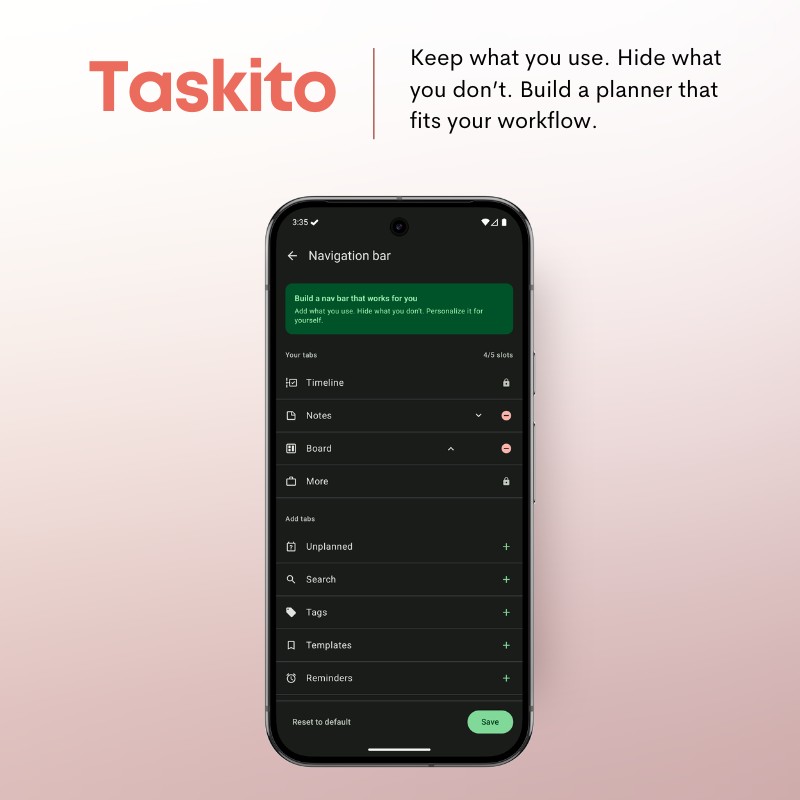
Your navigation bar, your layout — the pages you use most, always one tap away
Why this matters
Small navigation choices add up.
If you open the same page ten times a day, it should not be hidden behind extra taps. If you never use a section during your daily planning, it does not need to sit in your bottom bar.
Custom navigation helps you:
- Move faster. Keep high-use pages one tap away.
- Reduce clutter. Show the tabs that matter to your routine.
- Stay focused. Build a navigation bar around planning, capture, review, or project work.
- Make Taskito feel personal. Your planner can reflect the way you actually organize your day.
This is especially useful if you use Taskito as more than a basic to-do list. When your tasks, projects, reminders, notes, and templates all live in one planner, quick navigation becomes part of the workflow.
Setup ideas
Not sure which tabs to choose? Start with the pages you open most often. If you are still working out a daily routine, 7 simple ways to organize your day is a good place to start before locking in your nav bar layout.
For project planning
Use Timeline, Board, Reminders, Search, and More.
This setup works well if you plan your day from the timeline but often jump into project boards or search for older tasks.
For quick capture
Use Timeline, Unplanned tasks, Notes, Templates, and More.
This setup keeps loose ideas, reusable task templates, and unscheduled work close by. It is useful when you capture first and organize later.
For weekly review
Use Timeline, Board, Statistics, Repeating tasks, and More.
This setup is helpful if you review your progress, manage routines, and adjust repeating work regularly.
Frequently asked questions
How do I customize the bottom navigation bar in Taskito?
Open More → Personalize in the Taskito Android app. From there, select which pages you want in the bottom bar and drag them into the order you prefer.
How many tabs can I add to the bottom bar?
You can have up to 5 tabs in total, including Timeline (always first) and More (always last). That gives you up to 3 fully customizable middle tabs.
Is custom navigation available on iOS?
No — custom bottom navigation is currently an Android-only feature. iOS users can access all sections through the More menu.
Do I need Taskito Premium to customize the navigation bar?
Yes, this feature is available exclusively for Taskito Premium members on Android.
A customizable to-do list should adapt to you
Productivity apps often ask you to adapt to their structure. Taskito works better when it gives you room to shape your own system. If you are looking to go further, the Taskito daily planner guide covers how to build a full planning routine around the app.
Custom bottom navigation is a small change with a practical result: the pages you care about are easier to reach, and the app feels faster every time you open it.
If you are already on Taskito Premium, open More → Personalize on Android and set up your bottom bar around the way you plan. If you are not yet on Premium, download Taskito and try it free — then upgrade when you are ready to make the app truly yours.
Do you find Taskito helpful?
Support us by leaving a 5-star review on our app stores


Follow us on social media to get updates & tips about planning and productivity.