Mastering Quick Add: The Fastest Way to Create Tasks in Taskito Web
Work Smarter, Not Harder: Master Taskito Web's Quick Add Feature
Creating tasks shouldn't feel like filling out a form. With Taskito Web's revolutionary Quick Add feature, you can capture complete, fully-detailed tasks in a single line—no clicking through menus, no switching between fields, just pure, uninterrupted productivity.
Whether you're planning your week, capturing a sudden inspiration, or organizing a complex project, Quick Add transforms how you work with tasks. Let's dive into how this powerful feature can save you hours every week.
What is Quick Add?
Quick Add is Taskito Web's intelligent text parsing system that understands how you naturally write about tasks. Simply type everything in one line—the task name, when it's due, what time, how important it is, which project it belongs to—and Taskito automatically organizes all the details for you.
Think of it as having a smart assistant who understands exactly what you mean when you write "Call Mom Sunday 6pm p1 #Family !5mb" and instantly creates a properly formatted task with all the right settings.
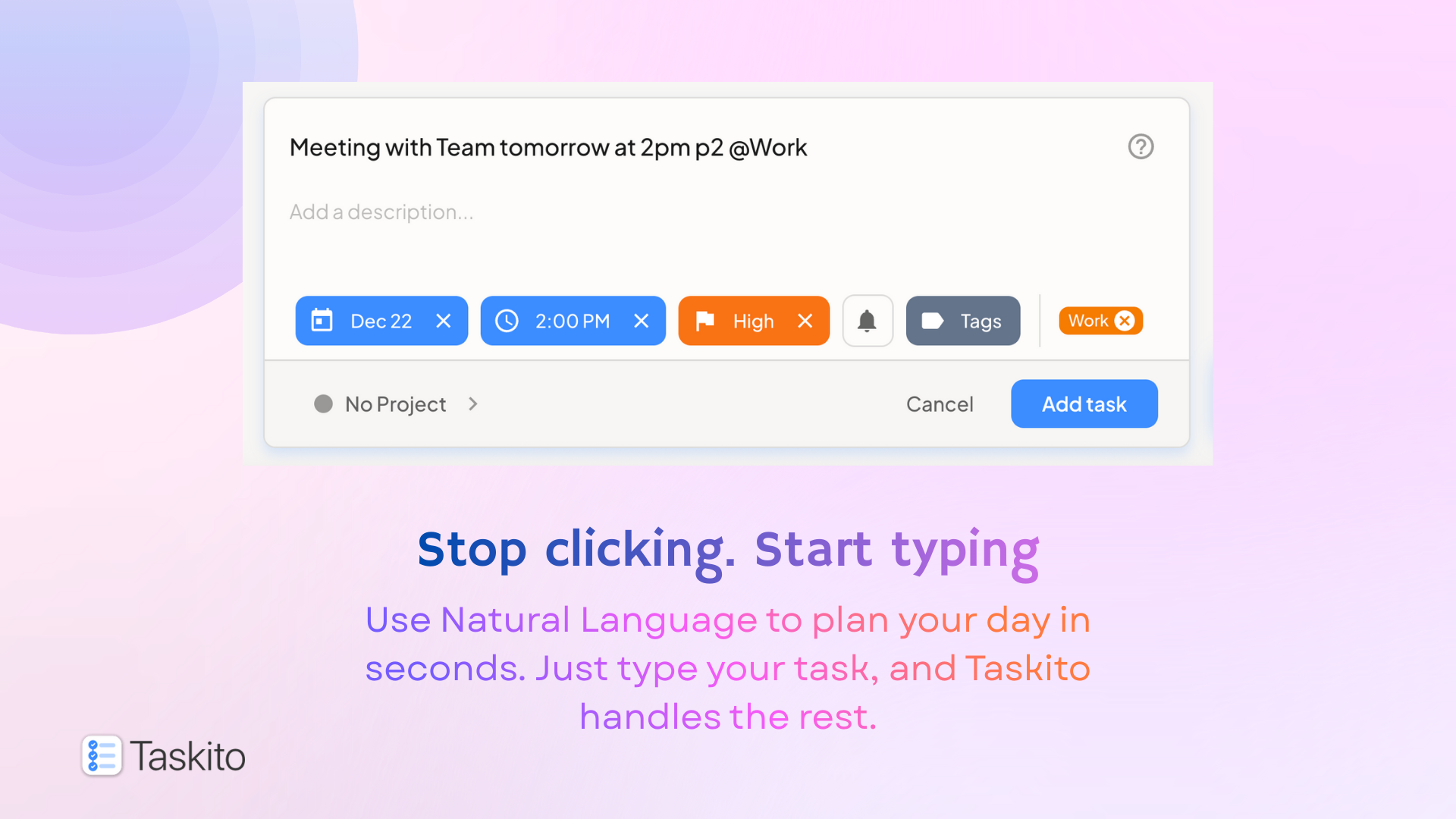
Quick Add: Create fully detailed tasks in seconds using natural language
Why Quick Add Changes Everything
⚡️ Lightning-Fast Task Entry
No more navigating through multiple menus or tabs. Type one line, hit Enter, and you're done. It's the fastest way to get tasks out of your head and into your system.
⌨️ Stay in Your Flow State
When inspiration strikes or priorities shift, Quick Add lets you capture everything without breaking your concentration. Keep your fingers on the keyboard and your mind on what matters.
🎯 Perfect for Batch Planning
Planning your entire week? Quick Add shines when you need to create multiple tasks quickly. Dump everything from your brain into Taskito in minutes, not hours.
The Complete Quick Add Syntax Guide
Here's everything you need to know to become a Quick Add power user:
📅 Setting Dates
Taskito understands how you naturally talk about dates. No need for rigid date formats:
- Relative dates:
tomorrow,today,next week - Day names:
Monday,Tuesday,Saturday - Specific dates:
Dec 25,January 15,12/25
Example: Finish report Friday — automatically sets the task for this Friday
⏰ Adding Times
Simply mention the time anywhere in your task, just like you would in a text message:
2pmor2:00pm— afternoon meetings9amor9:00am— morning tasksnoonormidnight— special times
Example: Team meeting tomorrow 3pm — creates a task with date and time set
🔥 Setting Priority Levels
Instantly mark how important a task is with a simple code:
p1— High priority (urgent and important)p2— Medium priority (important but not urgent)p3— Low priority (nice to have)
Example: Submit proposal Friday p1 — marks it as high priority
🏷️ Adding Tags
Use the @ symbol to categorize your tasks. Tags help you find related tasks quickly:
@home— personal tasks@office— work tasks@urgent— time-sensitive items@email— communication tasks
Pro Tip: As soon as you type @, a dropdown menu appears showing your existing tags for quick selection.
Example: Buy groceries @home @errands — adds both tags to the task
📁 Assigning Projects
Use the # symbol to link tasks to specific projects. This keeps everything organized:
#Travel— vacation planning#Website— development tasks#Q1Goals— quarterly objectives
Pro Tip: Type # and start typing to see an autocomplete dropdown with your existing projects.
Example: Book hotel #Travel — automatically assigns to your Travel project
🔔 Setting Reminders
Use the ! symbol to add reminders, and Taskito supports multiple reminder formats:
!10mb— 10 minutes before the task time!1hb— 1 hour before the task time!9am— at 9am on the task's due date!1h— 1 hour from right now!30m— 30 minutes from now
Example: Doctor appointment Tuesday 2pm !1hb — reminds you at 1pm on Tuesday
Putting It All Together: Real-World Examples
The real magic happens when you combine multiple elements into one powerful line:
Example 1: Family Task
Call Mom Sunday 6pm p1 #Family !5mb
Result: A high-priority task to call Mom on Sunday at 6pm, filed under Family project, with a reminder 5 minutes before.
Example 2: Work Project
Review marketing proposal tomorrow 10am p1 #Q1Launch @review !1hb
Result: High-priority task for tomorrow at 10am, assigned to Q1Launch project, tagged for review, with a 1-hour-before reminder.
Example 3: Personal Errand
Pick up prescription @home @health p2 Friday !9am
Result: Medium-priority task for Friday with home and health tags, reminder at 9am.
Example 4: Quick Capture
Research competitors @work #Strategy next week
Result: Task assigned to next week, tagged for work, filed in Strategy project.
Multi-Language Support
Quick Add speaks your language! The smart text parsing currently supports:
- English
- German
- Portuguese (Brazil)
- Japanese
- Korean
The feature understands locale-specific words and date formats in all supported languages, making it truly universal. Please note that using German phrases won't work if your app is set in English language and vice versa.
Pro Tips for Maximum Productivity
1. Pin Taskito in Your Browser
Keep Taskito Web open in a pinned tab for instant access. This creates your personal "Command Center" where you can quickly capture any task without switching contexts.
Bonus: Pinned tabs also ensure you receive browser notifications for your reminders!
2. Create a Daily Planning Ritual
Start each morning by using Quick Add to plan your day. Type out all your tasks in rapid succession:
Morning routine @home 7am
Gym @health 8am p2 !7:45am
Team standup #Work 10am
Lunch with Sarah 1pm @personal
Finish client proposal #ClientWork p1 5pm !2pm
3. Use Consistent Naming Conventions
Develop your own system for tags and projects. For example:
- Use
@contextfor location or energy level (@home,@office,@deep-work) - Use
#projectfor actual projects and goals - Combine them for powerful filtering later
4. Leverage the Autocomplete
Don't type everything manually! When you type @ or #, use the dropdown menu to quickly select from existing tags and projects. This keeps your system organized and prevents duplicate tags.
5. Start Simple, Then Expand
If you're new to Quick Add, start by just adding dates. Once comfortable, add times. Then priorities. Build up your muscle memory one element at a time.
Common Shortcuts Cheat Sheet
Print this out or save it as a reference until the shortcuts become second nature:
| Symbol | Purpose | Example |
|---|---|---|
| (none) | Task name | Write blog post |
| Day/Date | Set due date | Monday, tomorrow, Dec 25 |
| Time | Set time | 2pm, 9am, noon |
p1 p2 p3 | Priority | p1 (high), p2 (medium), p3 (low) |
@ | Add tag | @home, @urgent |
# | Assign project | #Work, #Travel |
! | Set reminder | !10mb, !9am, !1h |
The Bottom Line
Quick Add isn't just a feature—it's a complete mindset shift in how you manage tasks. By removing friction from task creation, you'll capture more ideas, miss fewer deadlines, and feel more in control of your day.
The key is practice. Spend a few days using Quick Add for every task you create, and soon you'll wonder how you ever lived without it. Your future self will thank you for the hours saved and the stress avoided.
Ready to Transform Your Productivity?
If you haven't tried Taskito Web yet, now is the perfect time. Experience Quick Add and discover how fast task management can truly be.
What's your favorite Quick Add combination? Master this feature and watch your productivity soar!
Do you find Taskito helpful?
Support us by leaving a 5 ⭐ review on our app stores

Follow us on social media to get updates & tips about planning and productivity.
Related Articles
Introducing Taskito for Desktop!
Taskito for Desktop is here! Access your favorite task manager from your computer with instant sync, Quick Add, and all the features you love. Premium users get automatic access.
Launching Taskito on iOS
Organize your day-to-day tasks, projects, and notes on your iPhone and iPad! Taskito is now available on iOS 🎉
The Power of Web Push Notifications for Your Shopify Store
Don't let your Shopify customers forget about you. Remind them of their abandoned cart via web push notifications, notify them of price drops and flash sales. Increase your sales with these Shopify Push notification tools.